Wednesday, October 28, 2015

26 Useful Things You Can Do with Siri

iOS_-_Siri_-_Apple
Siri is best known as Apple’s so-called digital personal assistant available on iOS devices like iPhone and iPad. Some might think Siri is only good for looking stuff up, but it can actually do a great deal more.
The thing about Siri is that can be hard to get used to, but once you do, it is incredibly useful. You can do a fairly wide array of tasks on your iOS device beyond simply looking something up. For example, you can have Siri create reminders, take notes, and set alarms. It can even make changes to system settings. Siri will also adapt to your personal language use and as you use it more and more, will tailor results individually to you.
Siri can easily be activated by holding down the home button on your iOS device until it beeps and the Siri interface appears. On iOS 9, Siri can also now be activated by saying “Hey Siri”, which is invaluable when you’re eating or driving or your iPhone is simply out of reach.
In this article, we want to go through and highlight some of the things that Siri can do. You might be surprised at how versatile and useful it is.

Searching for Things

We’ll just get it out of the way because we don’t want to be anti-climatic. Obviously, you can use Siri to search, and in fact that’s one of the things it does very well. That said, Siri will also use a variety of web services to pull data from other sources, so results are more useful than a simple list of websites you can visit.
As you’ll see in the following examples, if you want to find movie times, or know sport scores, then what you’ll see direct results rather than being shown websites you could visit to get more information.

Create Reminders

We all need to remember things, and Siri really shines when setting reminders. Simply say “remind me to …” and Siri will instantly add it to the Reminders app on your device.
If you have other iOS devices or a Mac, your reminders will be replicated to those as well, so no matter what Apple device you’re using, you can always access your reminders. Further, you can have Siri give you more specific timely reminders, for example, “Hey Siri, remind me to go to the gym at 3 PM.”
Additionally you can ask Siri to read you your to-do list, as well as location-oriented reminders like reminding you to perform an action when you leave the house, when you return home, or arrive at a certain place. If you have specific lists, you can tell Siri to add items to it like “add apples to my grocery list” or “add change oil to my to-do list.”

Create Events

Need to add something to your calendar? Siri can do that for you. Just tell Siri to create an event titled “such and such” at this time on this day and she’ll enter all that into your calendar for you.
Once Siri has the details nailed down, she’ll ask you to confirm or cancel. Once confirmed, the event will be replicated across all your devices so you don’t to repeat the effort on your Mac or iPad.
Want to do more? You can, such as moving meetings, rescheduling appointments, adding people to your meetings, and you can also ask about events, like what the rest of your day looks like, when you’re meeting with someone, and when your next appointment occurs.

Set Alarms

Setting alarms is really useful, particularly when you can use it in conjunction with “Hey Siri”.

Simply say something like “set an alarm for 8 AM” or “Hey Siri, wake me up at 6:30 AM” and it will turn the alarm on for that appointed time. You can also change alarms such as “change my 6:30 AM alarm to 7:00 AM,” turn off all your alarms, or have Siri set an alarm to wake you after a certain duration, i.e. “wake me up in 45 minutes.”

Call People

This one is very useful when trying to operate your device hands-free. You can use Siri to call people by simply telling it who to call.
You can even have it call a person on speaker so you don’t have to look at the phone to turn it on. That way, if you are driving, your eyes never leave the road.
You can also call specific numbers, get your call history, see if you have any missed calls, redial the last number, check your voicemail, and much more.

FaceTime with Your Friends

No need to open FaceTime if you want to chat face-to-face with friends and family, simply ask Siri to do it for you.
You can specify whether you want to make a regular FaceTime call (with video) or a FaceTime call with only audio.

Turn on a Timer

Simple but effective, and also pretty cool when you’re trying to operate hands-free. Use Siri to create a timer so that if you’re cooking something and washing your hands, you don’t need to touch the phone.
Setting timers in this way is actually a lot easier than using the Clock app in our opinion. You can also have Siri stop, pause, resume, and so forth.

Find out What Time it is

You can ask Siri what time it is, either where you live, or somewhere more distant.
Sadly, you can only ask for the time one place at a time. If you try to ask what time it is in several places at once, it will only return a result for the first place you ask about.

Tell You What Song is Playing

While it’s true there are specific apps out there that can do this, simply being able to tell Siri to listen and identify a song is a pretty neat trick.
Results are provided by SHAZAM but Siri will make it a seamless experience.

Play Songs from Your Favorite Artist

You can ask Siri to play songs from your favorite musical artist, or to play songs similar to your favorite artist, or a specific song from your favorite artist, and so on.
If you don’t have any music from them on your iPhone or iPad, then Siri will offer to queue them up on an Apple Music station.
There’s quite a few other things you can have Siri do for you when it comes to music. You can ask it to play music by genre, play specific albums, and basic controls like play, pause, and skip, among many other things.

Make Reservations

If you want to make a reservation at your favorite restaurant, Siri can connect to OpenTable and do that for you.
Once Siri finds out if there’s any available reservations, you’ll be able to tap the time you want and reserve a table. Make sure that if your party includes more than two people that you specify how large it is.

Launch Applications

Hey, we get it, apps are awesome and you probably have a bazillion on your iPhone by now, but don’t you get tired of flipping through your screens to find that one you only use occasionally?
No problem, just tell Siri to “open Dropbox” or “launch YouTube” and you’ll never have to scroll through your home screens again (unless you really want to).
You can also have Siri go and fetch apps from the app store, such as “download Twitter” or even have it search the app store for new apps, such as if you’re looking for a cooking or some other app.

Find and Read Emails

Don’t want to hunt for a particular email? Simply have Siri find it. You can have it search for email by subject, sender, date, and so forth.
Thereafter, once Siri finds the emails, you can have it read them to you, or you can just tap the one you want to open it in the Mail application.
Beyond this, you can ask Siri to perform other email-related tasks, such as asking it to check your email, replying to an email, and of course, sending new emails.

Perform Calculations

Why use a calculator when you can just ask Siri?
Of course, you don’t have to perform as complicated calculations as pictured above, but it’s nice to know you could if needed.

Perform Quick Conversions

Want to quickly know how many cups are in a gallon or miles per hour to kilometers per hour? Siri can perform quick conversions for you so you don’t have to look it up.
Next time you’re struggling mightily to convert tablespoons to teaspoons, remember Siri can help you out with that.

Check Dates

Siri can do a lot of cool stuff with dates as well, such as telling you what day of the week something is, how many days have elapsed between two dates, what day next Friday will be, and more.
You can play around with this and get a lot of useful information, but if you don’t want a shock, it might be better not to ask Siri how many days ago you were born!

Change Settings

This one is very useful because changing settings can sometimes be a little tedious. With Siri, you can just ask it to turn off something like Wi-Fi, or turn on Bluetooth.
It’s a great little extra perk, and we’re glad that Apple finally added this to iOS.

Access App Settings

If you have an app open on your iPhone or iPad, you can quickly access that app’s settings by opening Siri and saying “Settings”.
We like this particular trick because it’s so much faster than accessing an app’s settings the traditional way. Also, you don’t have to have the actual app open, you can ask Siri to open that app’s settings by saying “open [app] settings”.

Mapping

Mapping things is one of the most useful things a smartphone can do and luckily Siri makes it even more useful. You can ask Siri to show you how to get from point A to point B, or simply how far away a destination is.
You can do much more of course; you can ask Siri to give you directions home, ask what your ETA is, find the nearest gas station, show you landmarks, and tons of other stuff.
Because Apple Maps has gotten progressively better since it’s haphazard launch several years ago, you may not even need Google, meaning that you can have Siri route you around the country to your heart’s content.

Take Notes

Got a winning idea for the next great American novel, or something occurred to you that you really want to remember? Don’t leave it to your memory, have Siri note it for you.
It’s simple just to ask Siri to take a note, and like reminders and events, it will be synced to iCloud so it will be available across all your devices.

Send Text Messages

Siri really shows her personal assistant chops when it comes to text messages. Ask Siri to “send a text message” to so-and-so, and it will ask you what you want it to say.
Once, Siri has your message ready, you can tell it to send it to the recipient or just cancel.
If you simply want to dictate a message to send, you can just tell Siri to text someone with the message content. For example, “text Mom and tell her I’ll be home for Christmas” or “reply to Kirk that’s fantastic news.”

Read Text Messages

Texting and driving is a huge no-no, which is why you should just have Siri help you out with that. For example, in addition to being able to dictate and send text messages, you can also have it read them to you.
Of course, if someone sends you something personal, it’s probably best not to have Siri read it aloud in front of others, but if you’re in the car driving, and someone sends you a message, you won’t have to pull over to read it, instead you can have it read to you.
Once Siri has read you your new text message, you can have it reply or simply call the sender.

Follow Sports

For those of you who love and follow sports, you can have Siri keep you abreast of what is going on with your favorite (or not so favorite) teams.
You can ask when a team is playing, who they play, or what the score was. Siri can also give you other information such as standings and information about specific teams, as well as what games are on, what channel your favorite team is on, and much, much more.

See Where and When Movies are Playing

Want to go see the latest Hollywood blockbuster but don’t want to play movie roulette? Ask Siri to show you where something is playing nearby.
Being able to just ask Siri where a movie is playing will prove to be a terrific timesaver. Furthermore, the fun doesn’t end there, you can also ask Siri about who starred in a movie, find out which types of movies are playing, what’s playing at a specific theater, and so on.

Give Yourself a Nickname

If you don’t want Siri to refer to you by your name, you can tell it to call you by another.
Of course, if you don’t like the new nickname, or you want a different one, you can change it at anytime by simply asking Siri to call you something else.

Just Ask About What You Can Ask About

If you want to know more, and dig further into all of Siri’s powers, simply activate it say, “what can I ask you?”
Siri will give you a long list of categories, and when you tap on each one, it will give you further examples of all the things you can do with it.

How to Change the Number of Recent Items in OS X


With OS X 10.11 El Capitan, Apple has added a considerable amount of new features, but among all the hubbub and hoopla, are smaller items that the company slipped in unannounced. One of these is the ability to change the number of recent items.
Let’s show you what we mean. In many instances, OS X will collect recent items such as documents, apps, and servers you’ve connected to. For example, here on the Go menu, we see a list of recently visited folders, 10 items to be exact, which is the default.
You can clear the menu of any recently visited folders, but unless you change the configuration in the settings, it will always fill back up with at least 10 items.
Up until now, it hasn’t been possible to change the number of items that appear in these lists but El Capitan adds a new option to its General settings.
To change the number of recently visited items such as documents, apps, and servers, first open the System Preferences, and then tap open the “General” category. Scan down to “recent items” and, as we mentioned already, you will see it is set to show 10 items by default.
Click on this item and notice that you can change how many recent items appear in lists. You can turn them off or choose another number from 5 to 10, 15, 20, 30, or 50. When you choose “None”, obviously no more items will accumulate in your lists, but you will still need to clear items out, such as in the earlier screenshot.
That said, if you’re a privacy-conscious person and you don’t want documents, apps, and servers to appear in your recent items list, then here is where you can make that happen. If, on the other hand, you want your recent items to swell, then you can increase that number considerably over a mere ten.
Of course, this isn’t the only tiny, relatively unknown improvement to make its way into El Capitan. For example, we recently showed you how to hide your menu bar, which for longtime Mac users, is a noticeable change.
If you have any questions you wish to ask or comments you would like to contribute, we urge you to leave your feedback in our discussion forum.

How to Easily Transfer Photos from Your PC to Your iPhone, iPad, or iPod


00_lead_image_transfer_photos
To view your photos on your iPhone or iPad, you can use a cloud service to store them and then access them on your device. However, what if you want your photos available offline? Transferring your photos to your iPhone or iPad is easy using iTunes.
You can automatically create photo albums on your device by organizing your photos into subfolders within your main photos folder on your PC before syncing them to your device. The subfolders become albums.
To begin, connect your iPhone or iPad to your PC using a USB cable. Open iTunes and click the icon for your device in the upper-left corner of the iTunes window.
01_clicking_icon_for_device
Under “Settings” in the left pane, click “Photos”.
02_clicking_photos
In the left pane, click the “Sync Photos” check box so there is a check mark in the box.
03_clicking_sync_photos
To sync the main folder containing your photos, select “Choose folder” from the “Copy photos from” drop-down list.
04_selecting_choose_folder
On the “Change Photos Folder Location” dialog box, navigate to your main photos folder, open it, and click “Select Folder”.
05_change_photos_folder_location
To sync all the subfolders in the selected folder, accept the default selection of “All folders”. To only sync certain subfolders in the main folder, click the “Selected folders” option. Otherwise, select the default option, “All folders”, to sync all the subfolders.
06_clicking_selected_folders
Choose the subfolders you want to sync by selecting the check boxes for the desired subfolders in the “Folders” list.
07_selecting_folders
To start syncing the photos onto your device, click “Apply” in the lower-right corner of the iTunes window.
08_clicking_apply
The syncing progress displays at the top of the iTunes window.
09_syncing_photos
The subfolders you synced display as albums on the “Albums” screen in the Photos app.
10_albums_in_photos_app

Monday, October 19, 2015

Nexus 5X Review


The 2013 Nexus 5 was a much beloved device—it was great at a few things, good at others, and cheap enough that it's shortcomings didn't seem so glaring. It struck such a good balance that many owners passed on the (humongous and expensive) Nexus 6 last year. Now, there's the Nexus 5X, a spiritual successor to the 2013 Nexus. I haven't had the 5X for long enough to give it a proper full review, but I've got some impressions to share in advance of the review.

Look And Feel

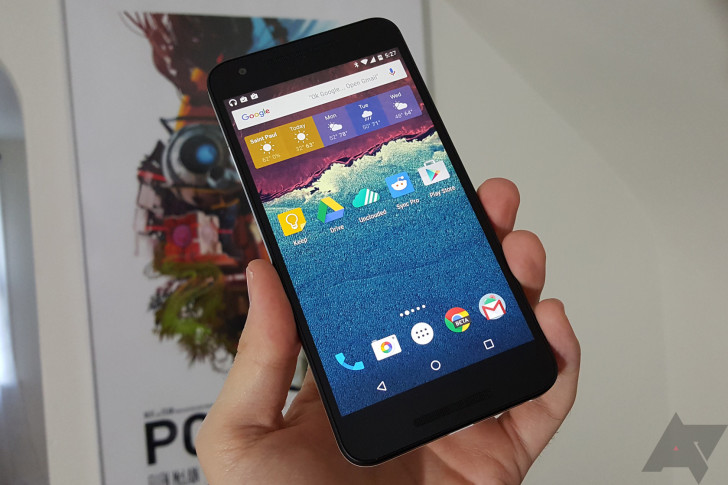
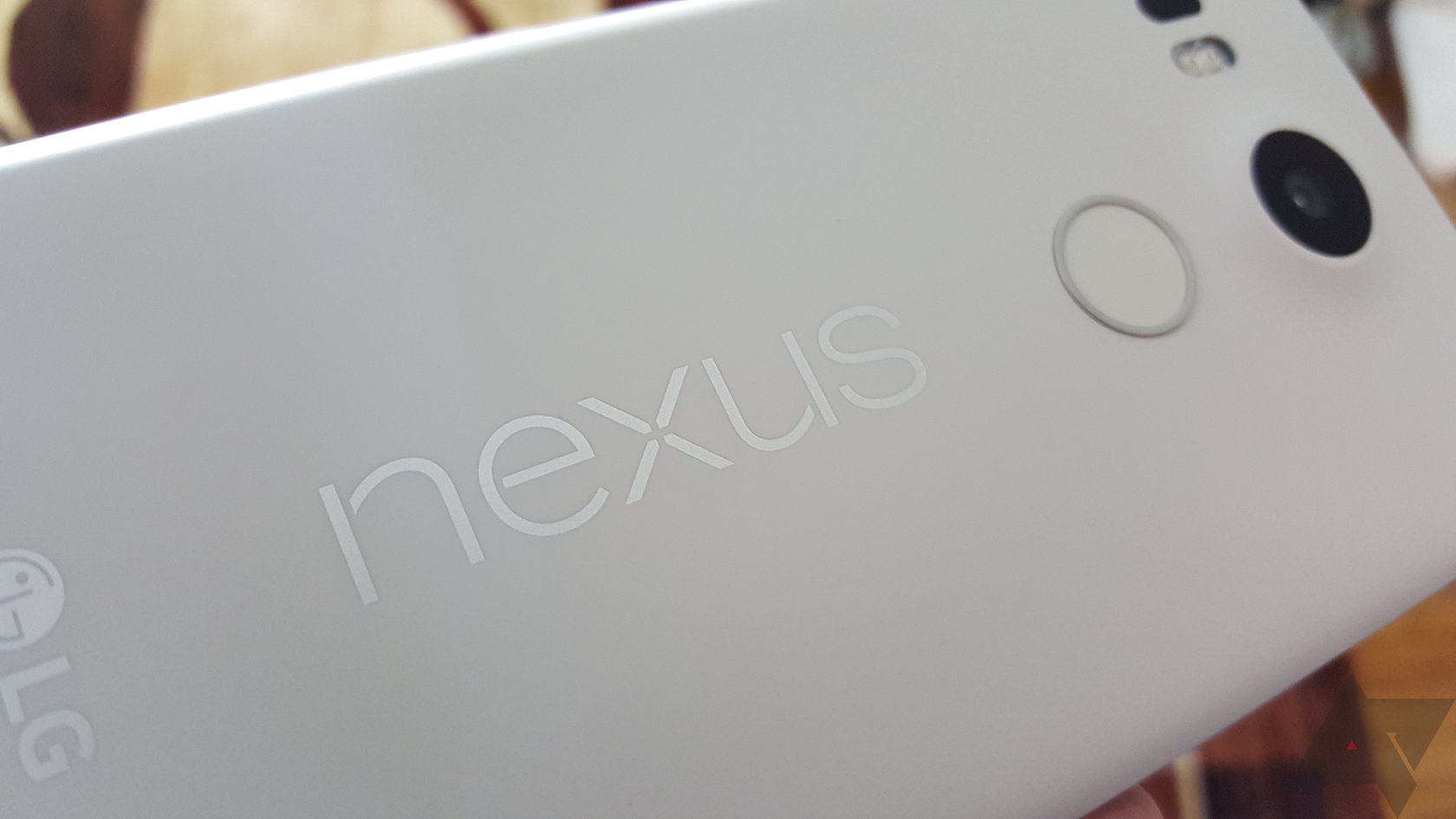
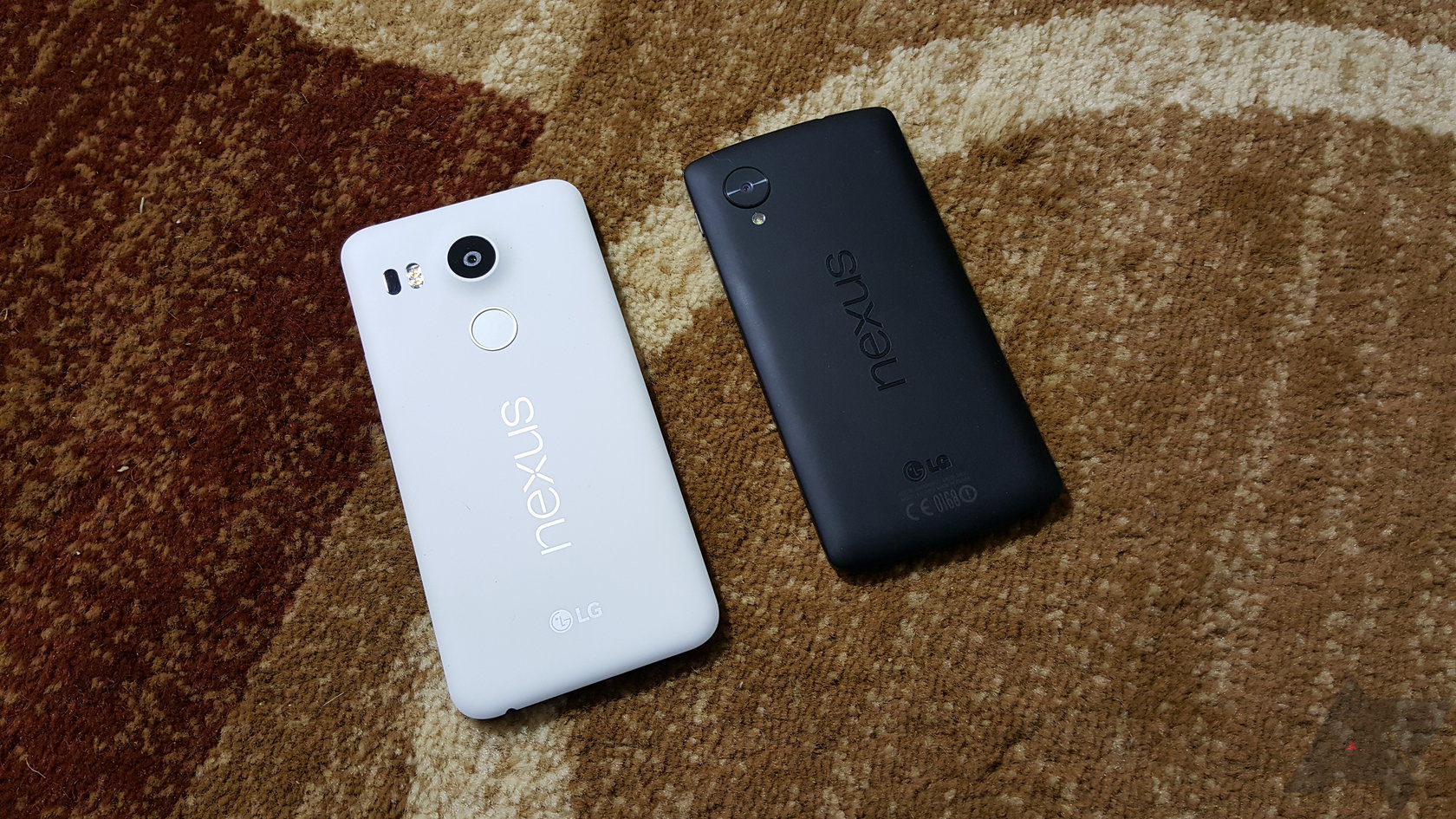
The Nexus 5X is definitely the less premium of this year's Nexus phones with a plastic shell that's pretty similar to the Nexus 5. Just like Nexus 5, this phone has a soft touch plastic back, but I think the most striking thing about it is that the back doesn't have the slightly mushy quality of the Nexus 5. It's like a solid piece of plastic rather than a rubbery covering over another layer. My review unit is the white/black panda-phone, so I expect the black one will be a little softer to the touch. The lighter soft touch materials are usually smoother to avoid staining.
The power and volume buttons are along the right edge and they're made of the same smooth plastic as the rest of the edge. They feel okay, but I think the Nexus 5's ceramic buttons are more interesting. That said, the 5X's buttons are extremely tactile and easy to find by touch. They sit well above the frame of the phone and there's no rattling around as there is on some phones.
wm_2015-10-18 17.29.03
It's refreshing to pick up a phone and not have to rationalize the weight. Devices like the Moto X Pure, OnePlus 2, and Note 5 are heavy, but they're big phablets. You expect that and you have to live with it. The 5X is compact (at least by today's standards) and weighs a mere 136g—that's about the same as the first gen Moto X (4.7-inch screen). So the 5X is surprisingly light, but it's still a solid (if plastic-y) build. There's no flex or creaking when you give it a squeeze.
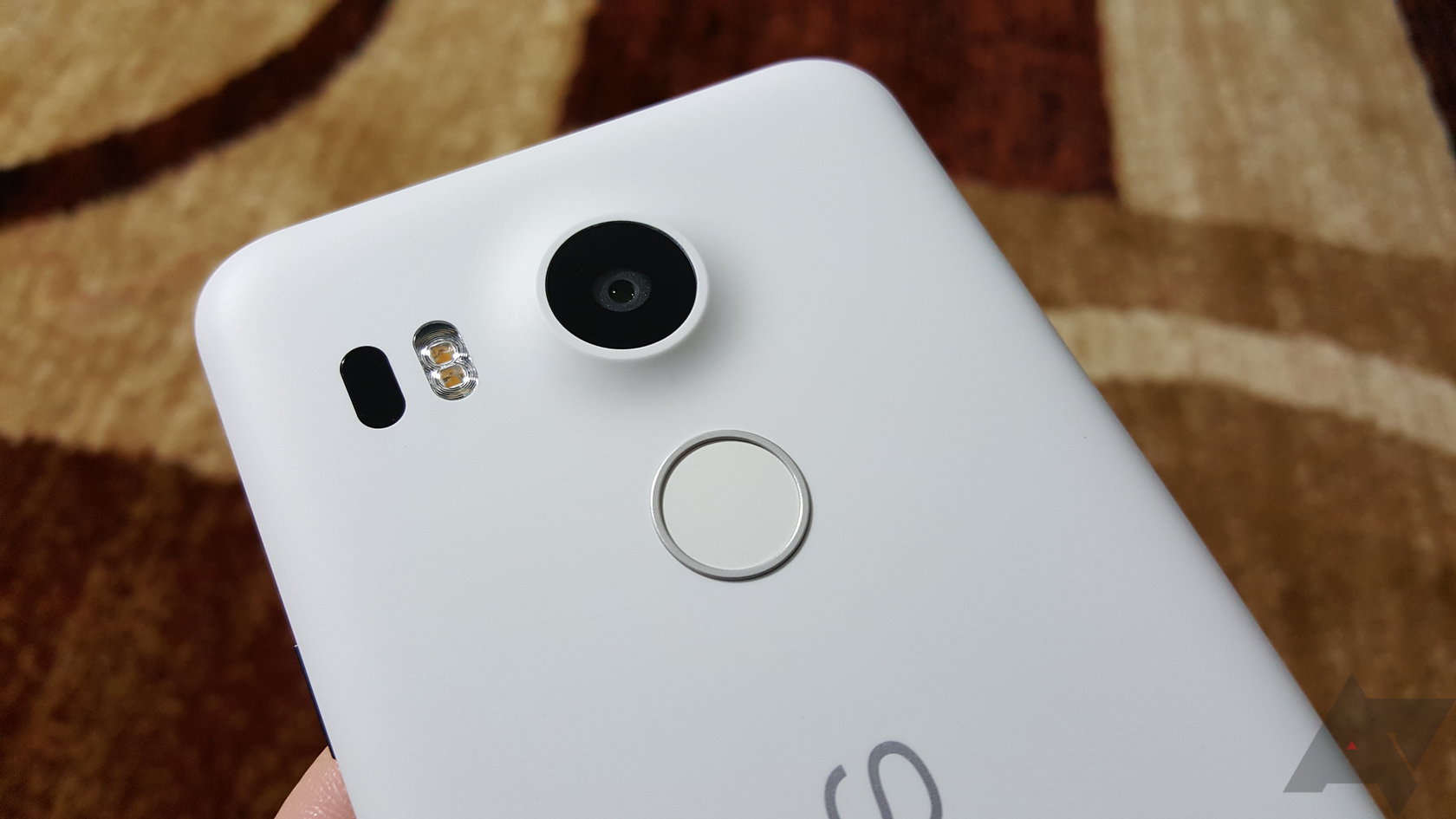
I'll talk about how the fingerprint sensor works in a moment, but I feel like the position of the sensor is important to the design. Something that Motorola has gotten right for the last few years is the dimple on the back of the phone. This acts as what's known as an internal precision grip. It helps you stabilize the phone in your hand, and the Nexus Imprint sensor on the LG-built 5X is similar. There's a low ridge around the periphery of the sensor, providing just a little friction to keep your finger in place.

Nexus Imprint

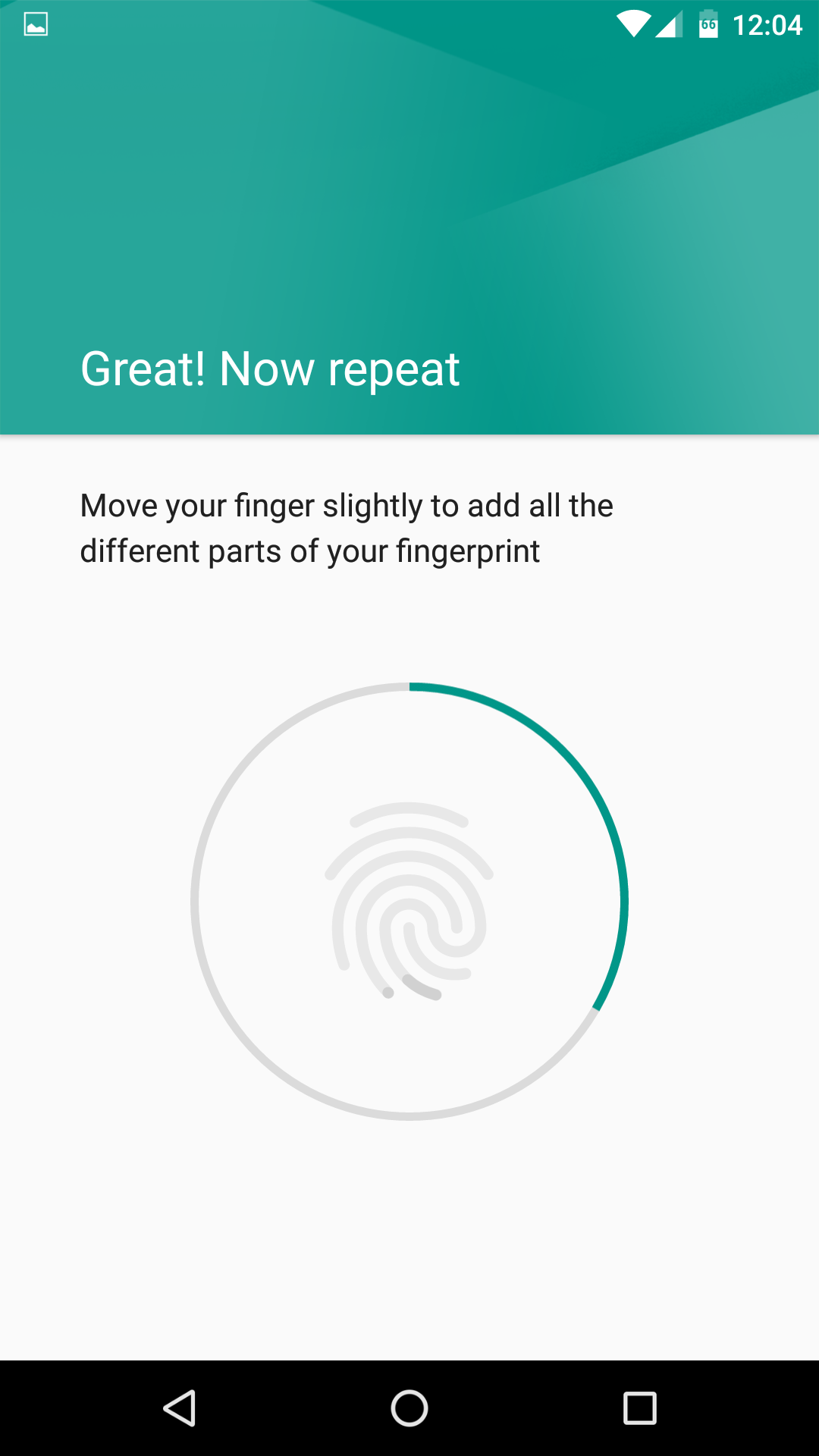
Most phones that have a fingerprint sensor include a somewhat painful setup process that requires you to tap the sensor roughly a thousand times. Okay, it's more like 20-ish, but each one takes a pretty long time. Nexus Imprint on the 5X is much faster to set up. I registered both index fingers on the 5X, but you can do more if you want. I'm not sure why you would, though, because the sensor is really positioned best for your index. Using any other finger seems awkward.
2015-10-16 17.04.11 2015-10-16 17.04.16 2015-10-16 17.04.21
I love that you can just tap fingerprint sensor while the phone is asleep and the phone unlocks and wakes up. So far, this has been absolutely bullet proof. It never fails and works almost instantly. It's maybe a little too fast at times. I've accidentally brushed the sensor as I slipped the phone in my pocket a few times, resulting in the screen waking up. It's not really a problem as I'm sure it's something I'll get used to not doing. It just illustrates how stupid-fast Nexus Imprint is.

Camera

I've been testing the 5X's camera as often as possible since I got it, but I'm not ready to give you a definitive opinion on how it performs. What I've seen so far is encouraging, though. Outdoor shots are great, of course, but indoor ones seem above average as well. Nexus phones have always had mediocre camera quality, especially inside with less than ideal lighting. I have a few sample images here for you to evaluate, but based on what I've seen so far, the 5X camera seems great at capturing detail without over-sharpening (see the frost crystals on the grass below) and low-light images aren't too noisy (Fi card and dog). There's a bit of a yellow tint with lower light, though.
wm_2015-10-18 17.26.50
Image captures are basically instant in good lighting, even with HDR+ enabled. In less than ideal lighting, shutter lag isn't any worse than most phones. For a Nexus, that's a big improvement. However, if you take 3-4 HDR+ images in a row, the camera app seems to lag noticeably. I suspect this is because all those photos are being processed in the background. This might be a bug of some sort because I don't think the system should be as bogged down by HDR+ as it appears to be. The 5X's Snapdragon 808 doesn't have as much raw power as an 810, but the HDR lag probably can't be entirely explained by this.
The laser autofocus seems very accurate, but not unusually fast. I'd place it about on par with the phase-detection system in Samsung's phones. Depth-of-field seems in-line with flagship phones that cost a lot more. The camera launches quickly with the double-tap power button shortcut. It works if the phone is asleep or awake—you're ready to take a picture in under two seconds (camera launch and focus). This camera lacks optical image stabilization, as well as electronic image stabilization like the 6P has. This doesn't seem to cause issues in good light, but longer exposures indoors with HDR+ can get fuzzy.

Display

The Nexus 5X uses a 1080p LCD, just like the Nexus 5 of yesteryear. The colors aren't as rich as you'll get on the 6P's AMOLED, but they look good for an LCD, I think. Certainly better than the Nexus 5's somewhat muted colors. The colors do lean a bit warmer than most LCDs, though.
The contrast and black levels are above average for an LCD. That's something you notice with ambient display mode. I appreciate this feature in the abstract—it's a great idea. However, the screen still seems too slow to wake up on the Nexus 5X (just like the N6). It just takes a beat too long for the screen to come on when you pick the phone up. Compare that to something like Moto Display, which is reliably instantaneous, and it's rather annoying.

Wrapping Up

The Nexus 5X seems like a good phone so far. I won't know how good until I've spent some more time with it. I'm somewhat concerned about the camera lagginess. I'll have to test that more thoroughly before I can render a verdict. Performance doesn't seem bad in general, though. I know there's concern about the phone having only 2GB of RAM, but I haven't had any problems yet. As for battery life, early impressions are good with Android 6.0. I'm using the 5X daily right now as I work on the review, so I'll have have more to say about the battery life then.
wm_2015-10-18 17.26.36
That's it for the review preview, but if you've got any specific questions, drop them in the comments and I'll try to address them in the review or reply if I have time.

Nexus 6P Review

Design and build quality

The Nexus 6P, despite being made of metal, is actually a little lighter than the Nexus 6 (about 6 grams lighter actually). This is of course due in part to the fact that the 6P is narrower (and thinner) than the 6. The 6P is a tad taller though. The narrower-but-taller dimensions really change the balance of the device. Its height doesn't feel too weird, but its width makes things like gesture typing with one thumb a lot easier. This is a task I found nearly impossible on the Nexus 6 on the best days.
_DSC6856
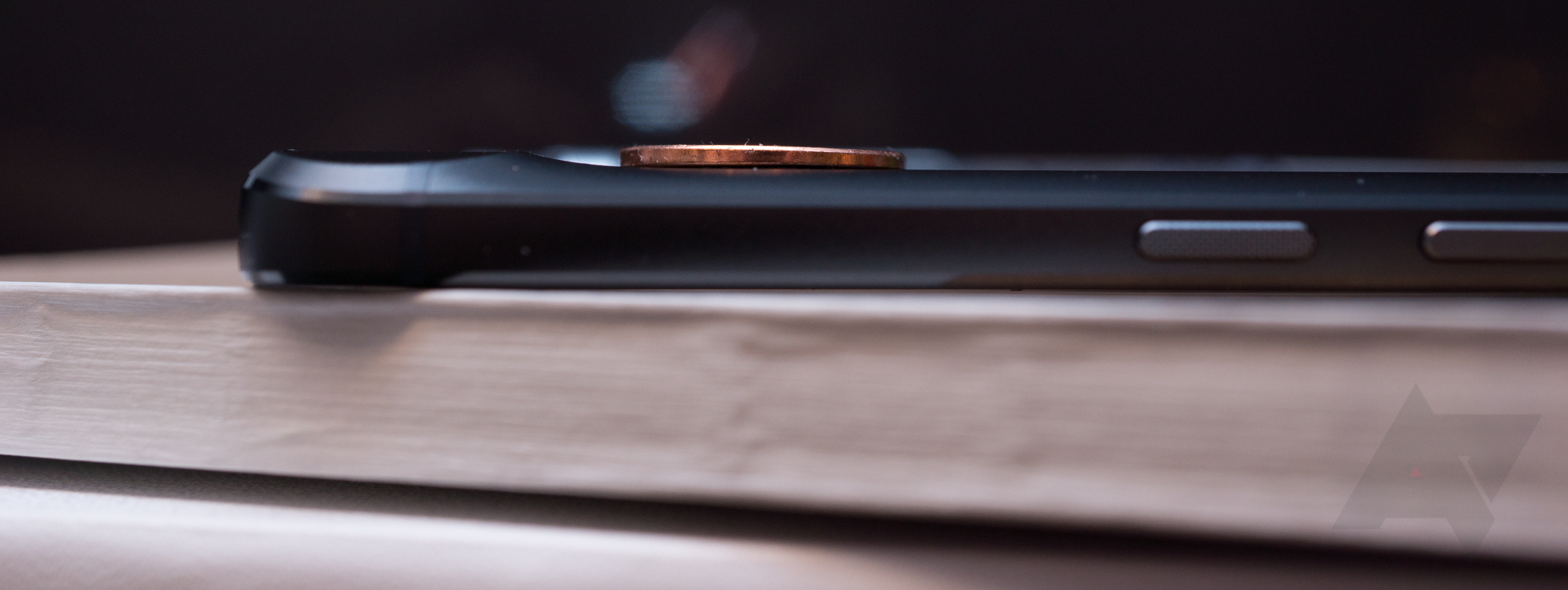
From the front, the device is predictable. Glass covering black bezels and a big display, and front-facing stereo speakers. On the right are the power and volume keys, on top is a headphone jack, and on the bottom is the USB-C port.
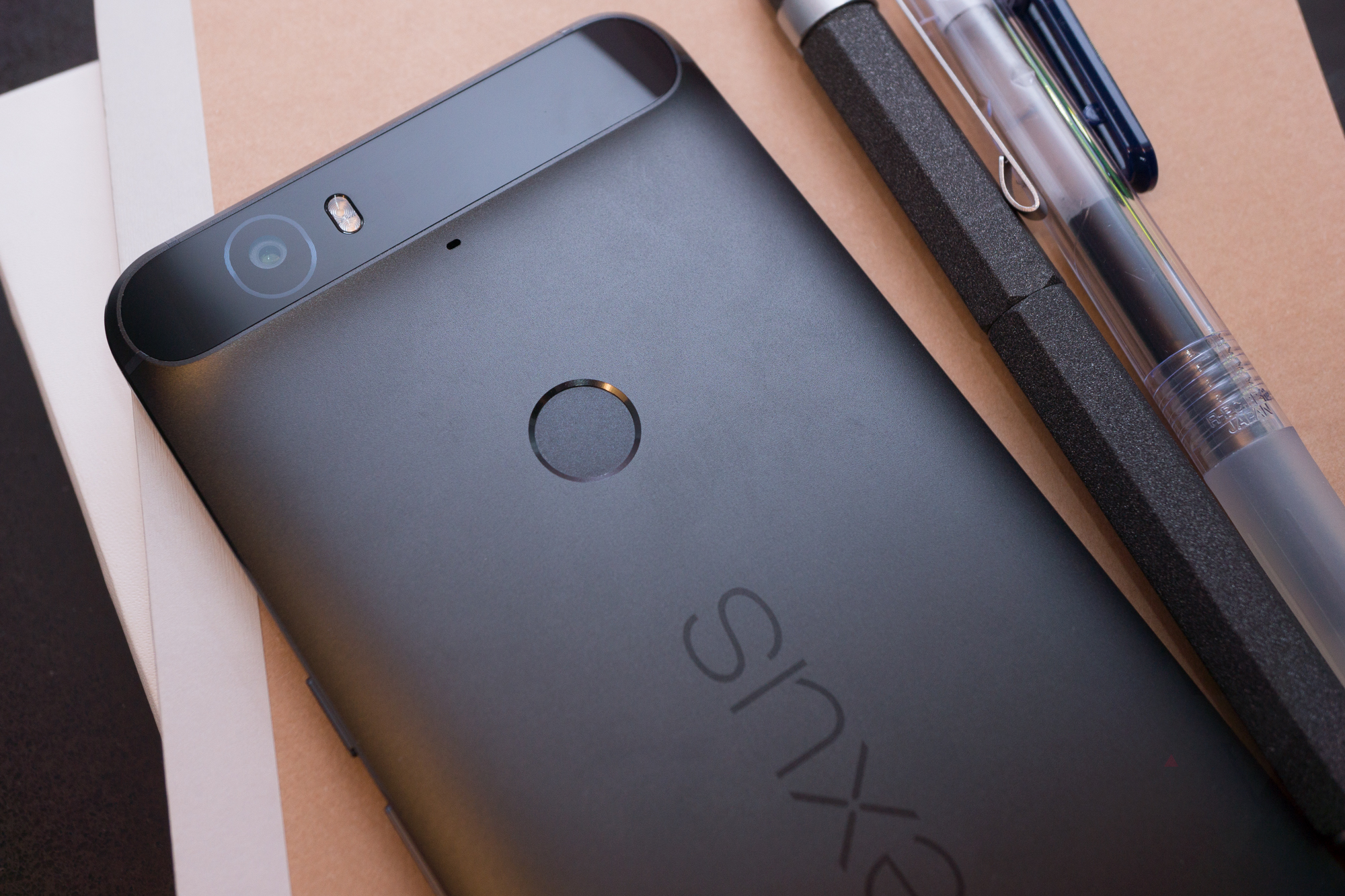
The back is where things get interesting. There's a printed Nexus logo (putting to rest the inlaid letters of Nexus' past) the Nexus Imprint scanner (which blends really nicely with the rest of the body), and that camera hump.
_DSC6862
I have to say that the pre-announcement leaks showed the bump in a worrisome light, but in reality it's much less pronounced than it looks in photos, and actually makes a nice gripping point for grabbing the phone out of your pocket.
_DSC6864
One interesting thing about the 6P's design is that it doesn't carry over the same design paradigms found in the Nexus 5, 7 2012 and 2013, and Nexus 9. And it obviously doesn't look much like Moto's Nexus 6 either, in terms of contour. But it does have those front-facing speakers. It isn't shocking to see a uniquely designed Nexus (they all had very different looks until the Nexus 5 actually), but it is interesting to consider.
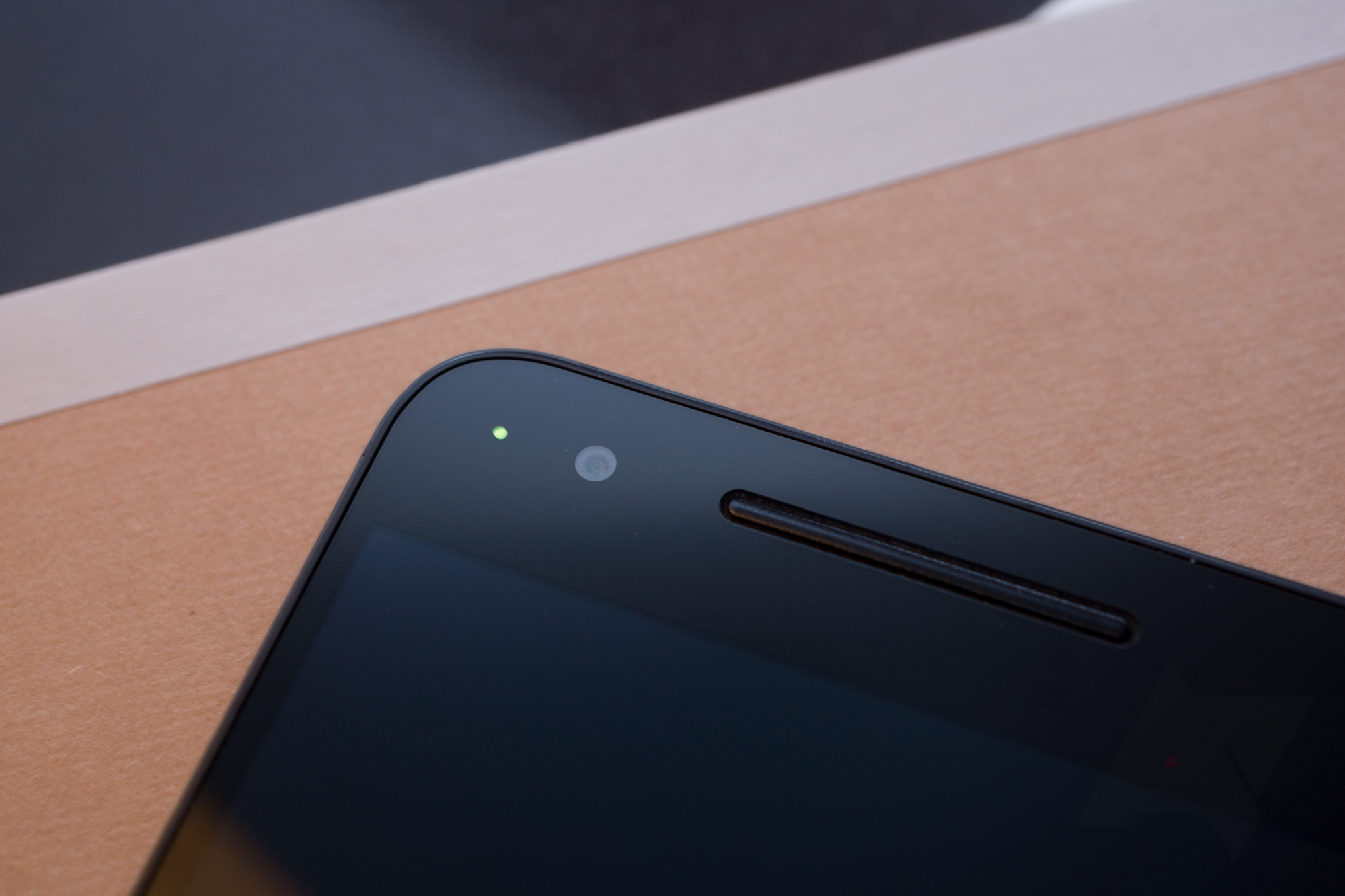
The 6P (like the 5X) also has a notification LED that can be switched on without any modifications to the device. Just go to settings > sound & notifications and toggle "pulse notification light." Personally I'm a big fan of LED notification lights, and if you find that ambient display is too distracting, this could be a good option to still find out when you have notifications. The light isn't in the same spot as previous Nexus devices, but it's there and it works and that's what's important.
_DSC6870

There's probably not a lot I can say about Imprint that you won't read in Ryan's look at the Nexus 5X, but I'll discuss my experience with it so far anyway.
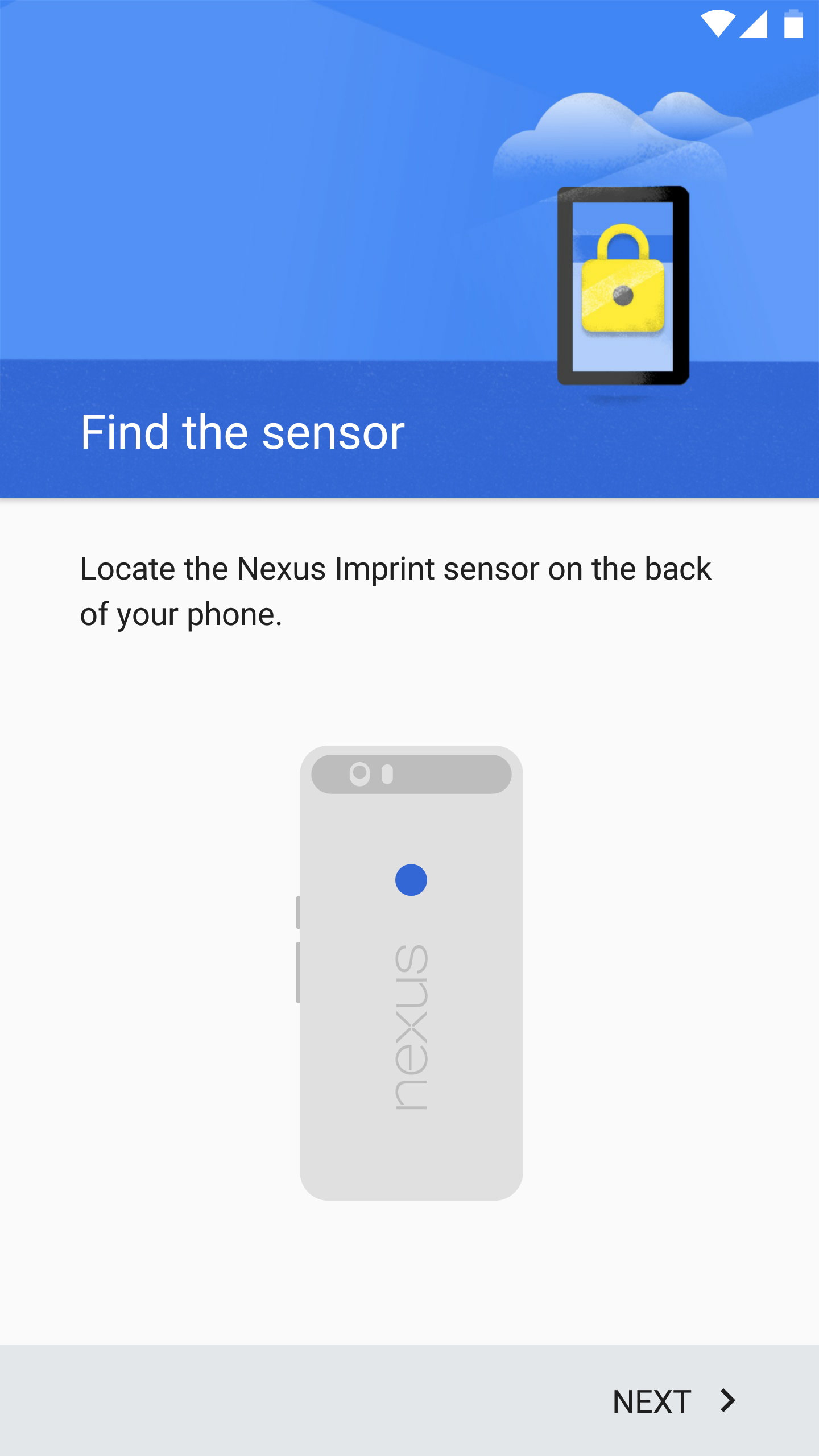
First, the setup process is baked right into the initial setup wizard for the device. As Ryan pointed out some other devices require many many touches to register a finger. TouchID in iOS for example requires tons of touches, and toward the end of the registration - if iOS doesn't feel you've done a good enough job - a touch will register and then kind of "unwind" from the progress meter, which is really annoying. Imprint doesn't do that. Whether that impacts accuracy I don't know, but I do know that Imprint works really fast and really well. It's very hard to demo since the scanner is around back, but I'm super glad it's around back. It's this writer's opinion that adding something to the front of the device just to accommodate the scanner would be a big design sacrifice, and my finger gravitates to that area on the back of the device anyway.
Screenshot_20151016-135903 Screenshot_20151016-135915
But that can be a double-edged sword. Grabbing the phone or putting it in my pocket, it's very easy to touch the sensor. I'll either touch it with my index finger, unlocking the device, or touch it with the wrong finger getting a little "buzz-buzz" to let me know it doesn't recognize that finger. A single buzz means your fingerprint worked.
So far I haven't had much trouble with unlocking the device, and in fact I use the power button pretty infrequently as a result. It's faster and more pleasant to simply touch the sensor to wake the device all in one step.
Some apps - like Robinhood, one of my favorites - already support fingerprint authentication, which is great. From speaking with Francisco Franco, it sounds like implementing support for fingerprint authentication isn't too hard a task (Google provides a sample here) so hopefully more developers pick it up soon.

The camera

Like Ryan, I don't feel prepared yet to give a full analysis of the camera, but also like Ryan I'll say that results so far look pretty good. As a Nexus, the 6P is star-crossed when it comes to the camera, right? I would argue that simply isn't so this time around.
Whatever is going on in there (be it the larger pixels, laser autofocus, or better processing), it's good. The camera performs really well in daylight, surprisingly well in medium light, and performs as expected in true low light.
I will say that, so far, the shutter seems to struggle sometimes in low light, which is understandable - something has to suffer for the exposure to look adequately bright. Images can also vacillate between nice dark exposures in true low light (like the first image in the set below) and exposures that seem to meter more for the sky (like numbers 3 and 4), which results in a lot of noise. But touching the object you want to meter for generally does the trick.
But in almost all other conditions the camera seems to perform much better than I'd expect. In the full review, I'll have some comparison shots with the Nexus 6 and iPhone 6, but for now take a look at the samples below and just view them objectively. I shot these photos in full auto, how the camera app comes out of the box (minus flash), so HDR+ Auto is on.
Be sure to click into our picture viewer to see the images at a better resolution.

Display

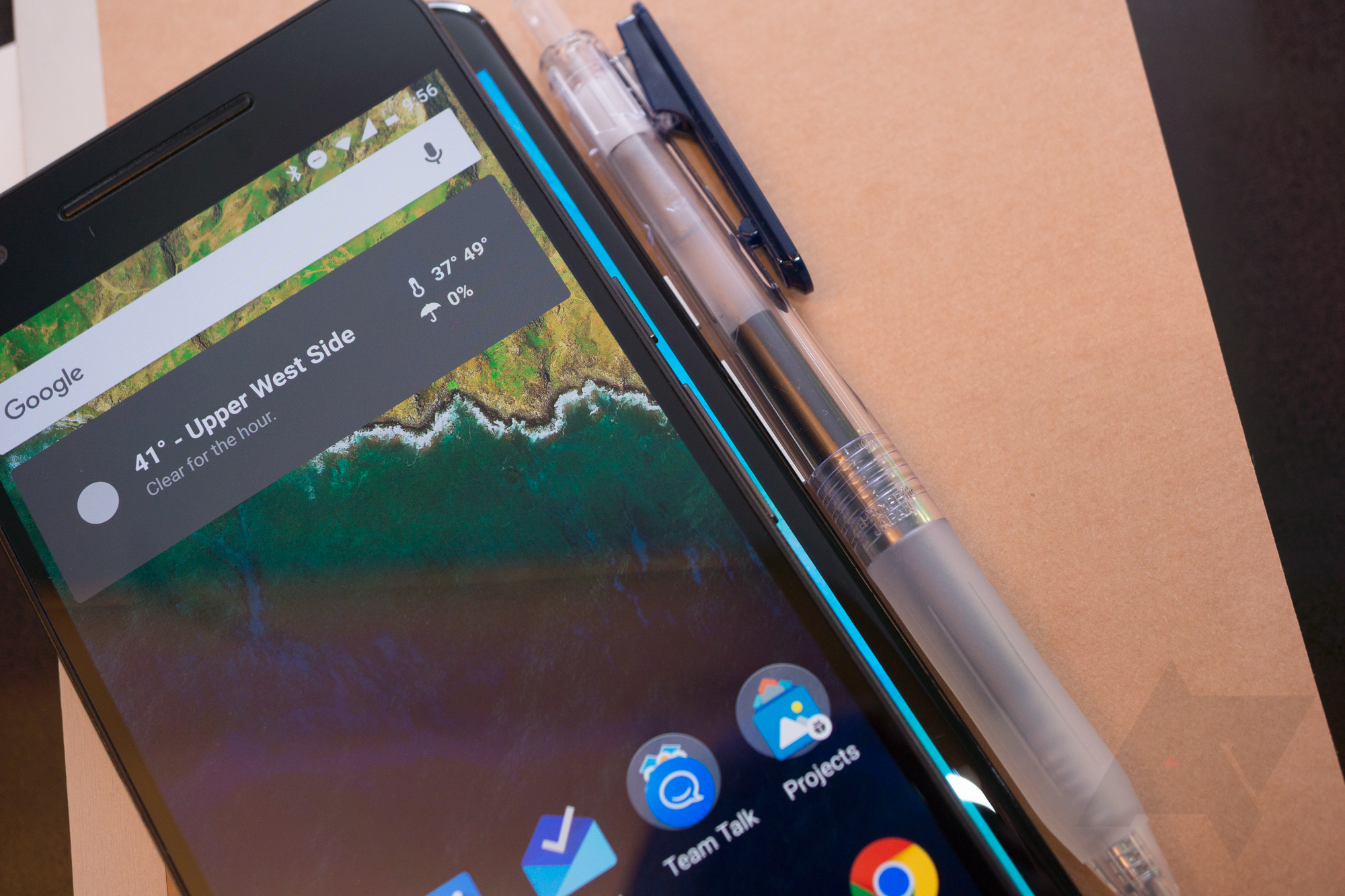
I can't write even a preview review of the 6P without talking about its display. Personally, I obsess over displays on new devices. If I'm buying a device that I'll check up to a hundred times a day, I want it to look brilliant, and the 6P's display does. As we know, it's using the same generation panel as Samsung's Galaxy Note 5 (whatever deal Google and Samsung made, I applaud). It's bright and vivid as you'd expect, and crystal clear thanks to the 1440x2560 resolution jammed into the 5.7" display.
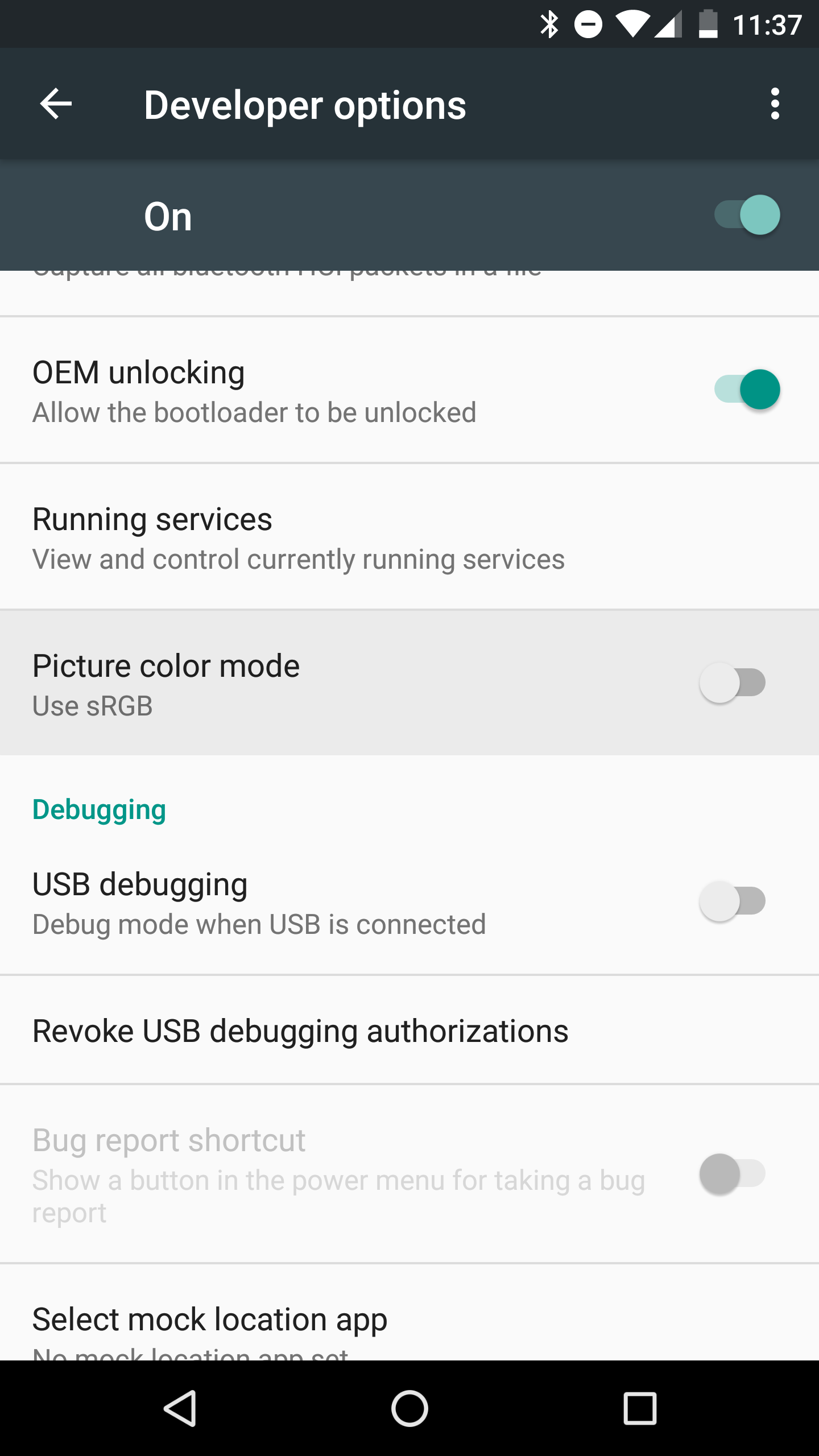
Plus - as a bonus - there's a toggle in developer options for "sRGB mode," which evens out the Super AMOLED's affinity for over-saturated colors. The difference isn't huge but it is appreciable.
Screenshot_20151018-233702

The speakers

There's no really good way to demo speakers for a review, but I will say that they sound great, just as the N6's speakers did. I pushed them all the way up to top volume (which is honestly louder than I want it to be for close-range use), and they still sounded clear and pleasant. I'm no audio expert, but if going headphone-less with your phone is a common use case, you won't be disappointed with the 6P's performance.

What about the 810?

For some prospective buyers (myself included, though I already ordered), the Snapdragon 810 under the 6P's hood is a big concern. After all, we've heard for a long time that the 810 gets really warm and in some cases is subjected to significant throttling to get around the heat issue. I can't really comment in detail yet about how the 810 is performing under stress in the Nexus 6P, but I will say the only times it's been noticeably warm are during initial installing of my apps (incidentally I was using the phone the whole time too), and one other time when I was using the device pretty heavily for about half an hour. Other than that the 810 hasn't really made its presence known to me, but we'll see how this plays out as I get to know the 6P better.

Conclusion

That's basically it for the review preview. In the full review we'll take a deeper dive into the device and how it's working out after a little more daily use, including battery and performance observations. In the meantime, do you have any burning questions? Drop them in the comments below and I'll try to answer them for the full review!